
Meet your wallet
Electrum Neurai is a lightweight desktop wallet for the Neurai network. It builds on the Electrum wallet model and connects to compatible servers instead of requiring you to operate a full Neurai node. XNA is the native coin used on that network.
Self-custody means you manage the credentials that control your funds. The application helps you create addresses, review your balance, and sign transactions; it cannot undo a payment or recover a lost recovery phrase for you.
Know the essentials
| Term | What it means |
|---|---|
| XNA | Neurai’s native coin. Use the Neurai network when sending or withdrawing it. |
| Receiving address | A public destination you can share to receive funds. It is not a recovery phrase. |
| Seed / recovery phrase | The secret words used to restore a seed-based wallet. Treat them as access to your funds. |
| Wallet password | Local protection for the wallet file. It is not a substitute for a recovery backup. |
| Transaction ID | A public identifier used to look up a transaction and its confirmation status. |
Download & installation
Start with the official Electrum Neurai releases. The current release is 0.2.2 (v0.2.2). Read the release notes, choose the file for your operating system, and check any architecture or system requirements listed with that release.
- Check the sourceUse the NeuraiProject/electrum-neurai repository. Avoid sponsored search results, unsolicited download links, and files sent through direct messages.
- Choose the correct fileTake the package for your operating system: a setup installer for Windows, a disk image for macOS, or an AppImage for Linux. Check any architecture or system requirements listed with the release.
- Verify before you open itEvery release publishes SHA-256 checksums and a matching
.ascsignature for each file, signed with the project PGP key (fingerprint E04B BAAB FD79 2564 3C84 8275 5401 5574 1B13 FE02). A checksum from an untrusted mirror is not proof of authenticity. - Install, then open the applicationFollow your operating system’s normal installation process and the release instructions. Stop if the downloaded file or publisher looks unexpected.
| Platform | Package | Before you install |
|---|---|---|
| Windows | Setup installer | Review security warnings rather than disabling antivirus or system protection. |
| macOS | Disk image | Drag the app into Applications, then open it with right-click → Open the first time. Allow it in System Settings → Privacy & Security if Gatekeeper asks. |
| Linux | AppImage | Make the file executable, then run it. |
Updating an existing wallet
Make sure your recovery backup is complete before updating. Close the wallet, read the new release notes, and install the official package. Keep a backup of important wallet metadata and do not delete your existing wallet files to troubleshoot an upgrade.
Create your first wallet
For ordinary use, create a new standard, seed-based wallet in the application’s setup wizard. Advanced wallet types require different backup procedures; choose one only if you understand its requirements.
- Name your walletChoose a recognizable filename. A wallet name is only a local label; it is not an account registered with a company.
- Create a new seed-based walletChoose the new-wallet path in the wizard. Let the application generate the recovery phrase rather than inventing your own words.
- Write the recovery phrase downCopy every word in the exact order shown. Keep it offline and away from cameras, shared printers, cloud storage, and messaging apps.
- Complete the backup confirmationFollow the wizard’s check carefully. If you use an optional seed extension, it becomes part of your recovery information and must also be backed up exactly.
- Set a strong wallet passwordUse a unique password and keep your computer protected. Wait for the wallet to connect and synchronize before checking balances or receiving your first payment.
Backups & recovery
A recovery phrase and a wallet-file backup serve different purposes. Keep both when possible, but never assume that one backup method covers every wallet type.
| Backup | What to preserve |
|---|---|
| Seed-based wallet | The exact recovery phrase, any seed extension, and the wallet type. Keep secrets offline. |
| Wallet file | An up-to-date copy of the wallet file and its password. This can also preserve local labels and other metadata. |
| Imported-key wallet | The imported private keys or an appropriate wallet-file backup. A seed from a different wallet does not recreate imported keys. |
| Watch-only wallet | The public wallet information for monitoring, plus the separate signing wallet’s recovery backup. Watch-only information cannot authorize spending. |
Restore a seed-based wallet
- Use a trusted installationInstall official Electrum Neurai on a clean device. Start a new wallet file so you do not overwrite your existing copy.
- Choose the restore / existing-seed pathSelect the wallet type that matches the original wallet and enter the recovery phrase inside the application, not on a website.
- Include the original seed optionsIf you used a seed extension or non-default setup, reproduce those settings. Different options can produce a different wallet.
- Set a new local passwordAllow the application to connect and synchronize. Compare receiving addresses and transaction history with records from your original wallet.
Forgot your password?
For a seed-based wallet, a complete recovery backup can let you restore into a separate wallet file and set a new password. Keep the original file until recovery is verified. If you have neither a usable backup nor access to the original wallet, there is no central password-reset service.
Security & privacy
Self-custody protects you from depending on a custodian, but it also makes your device and backups critical. A wallet password alone cannot protect you from malware running on the same computer.
- Keep secrets offline. Never share your seed, private keys, seed extension, or wallet password with support staff or community members.
- Verify payment details. Clipboard malware can replace an address. Compare the complete destination before signing.
- Protect the computer. Keep your operating system current and avoid unknown browser extensions, pirated software, and remote-access requests.
- Maintain separate backups. Store offline copies securely in separate locations. Protect them from fire, water, theft, and accidental disclosure.
- Test unfamiliar recipients. A small test payment is safer than discovering a mistake after sending the full balance.
Understand network privacy
Neurai transactions are recorded on a public blockchain. Receiving addresses, amounts, and transaction histories can be observed publicly. A connected wallet server may also observe your IP address and the addresses your wallet requests. A lightweight wallet is not automatically an anonymous wallet.
Receive XNA
- Open ReceiveLet the wallet synchronize, then open its Receive tab and obtain a receiving address.
- Copy and verify the addressUse the application’s copy action and compare the copied address with the one shown in the wallet.
- Specify the Neurai networkIf withdrawing from an exchange, choose XNA on the Neurai network. Confirm the exchange’s withdrawal rules and minimums.
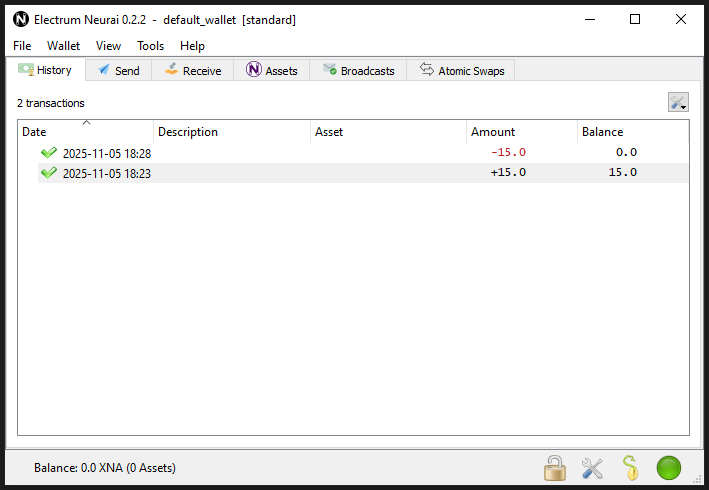
- Check the incoming transactionLook in the transaction history. A payment may appear as unconfirmed before it is included in a block; wait for the confirmations appropriate to your use case.
A payment request is not proof of payment. Confirm that the actual transaction appears in your wallet or a trusted Neurai explorer. An expired request does not reverse a transaction already sent on the blockchain.
Send XNA & understand fees
Transactions authorize a transfer of funds. Once broadcast and confirmed, they generally cannot be reversed. Take time to review the destination, amount, and fee.
- Open Send and enter the destinationPaste the recipient’s Neurai address. Confirm it through a trusted channel, especially for a new recipient.
- Enter the amountCheck the unit displayed by the wallet and leave enough XNA for the network fee. Sending an asset can also require XNA for its fee.
- Review the transactionInspect the recipient, amount, asset selection where applicable, and total fee in the wallet’s preview or confirmation step.
- Sign and broadcastApprove inside the application and enter your wallet password if requested. Watch-only wallets cannot sign a payment by themselves.
- Track confirmationsUse the transaction history and transaction ID to check progress. Avoid sending again simply because a payment is still unconfirmed.
How fees work
A network fee is paid for transaction processing; it is not a website subscription. Fees can depend on transaction size and network conditions, not just the amount you send. Use the options offered by your installed wallet and review the final fee before signing.
Unconfirmed transactions can take longer during congestion or if their fee is insufficient. Fee adjustment or replacement is only possible when supported by the transaction and wallet; do not assume an unconfirmed payment can always be cancelled.
Working with Neurai assets
Electrum Neurai extends the Electrum experience for Neurai’s asset ecosystem. Asset tools, names, and available actions depend on your installed release. Consult its release notes before using asset creation, management, or advanced transactions.
- Check the asset identifier. A familiar name or ticker is not proof that an asset is genuine or valuable.
- Check the recipient’s support. An exchange or another wallet may support XNA without accepting a particular Neurai asset.
- Keep XNA for fees. An asset balance is not the same as a native-coin balance available for transaction costs.
- Review amounts and precision. Assets can have different units and divisibility. Confirm the amount in the transaction preview.
- Back up before advanced operations. Understand issuance, reissuance, and any special rules before authorizing an asset transaction.
Troubleshooting
Start with checks that do not put your backups at risk. Keep the original wallet file, record the error message, and never send private wallet information to strangers.
My wallet is disconnected or will not synchronize
Check your internet connection, device clock, firewall, and installed wallet version. Review connection settings and use compatible Neurai servers, not Bitcoin Electrum servers. If automatic connection is enabled, allow time for a server to become available. Do not disable system security or install an update offered by an unsolicited message.
I restored my wallet but the balance is zero
Wait for synchronization and compare addresses with your original records. Check the wallet type, word order, seed extension, and original setup options. Imported private keys are not restored by an unrelated seed. Do not enter your recovery phrase into an online “balance checker”.
An incoming payment has not appeared
Ask the sender for the transaction ID, confirm they used the Neurai network and your correct address, and check the transaction on a trusted Neurai explorer. An exchange withdrawal marked pending may not yet have been broadcast. If it is visible on-chain, allow the wallet to synchronize.
My transaction is still unconfirmed
Check the transaction ID, fee, and current confirmation status. A broadcast transaction may wait for block inclusion. Avoid creating a duplicate payment; only use fee adjustment if your wallet offers it for that transaction and you understand the result.
I cannot send even though I have a balance
Check whether funds are confirmed and spendable, whether you have enough XNA for fees, and whether this is a watch-only wallet. For assets, confirm the selected asset and its units. Review the actual error message without posting your seed or wallet file.
The application will not open after an update
Confirm that the package matches your operating system and architecture. Check the official release notes for dependencies or known issues. Preserve the original wallet files and backups before reinstalling. Report reproducible problems through the official repository, removing sensitive information from logs and screenshots.
Official resources & support
Use the project’s own resources for current versions, technical instructions, and issue reporting. Generic Bitcoin Electrum documentation can explain concepts, but it is not a substitute for Neurai-specific compatibility information.
This handbook covers everyday desktop use. Exact dialogs, package formats, and advanced capabilities vary by release; the official repository and the release notes are the reference for those details.
Keep a backup. Check every address. Stay in control.
Download Electrum Neurai